

0%
In September 2026, attackers exploited the StyleSmuggler flaw in Magento for three days before Adobe released a hotfix, according to Sansec’s research. The flaw is rated CVSS 10.0, the highest severity score, and affects every Magento version from 2.4.4 to 2.4.9.
A store with a maintenance routine gets such a hotfix installed quickly and scanned for malware afterward. Without a routine, the same problem can go unnoticed until customers report issues at checkout. Outdated extensions and backups nobody tested cause trouble the same way.
Use the 15-point checklist below as a routine for your team or your support partner. It comes with a schedule, so you know which checks to run every day and which can wait until next quarter.
Key Takeaways
Magento 2 support and maintenance is an ongoing process: updates, security patches, monitoring, backups and regular tests of the store’s main functions.
Security patches and version updates come first. Adobe’s standard support for Adobe Commerce 2.4.6 ended on August 11, 2026.
When cron jobs or indexers fail, the storefront shows outdated prices, stock levels and catalog data.
A weekly test purchase on desktop and mobile helps you find checkout problems before customers do.
Your store team can handle simple checks, while upgrades, patches and server issues need a Magento developer.
Why Magento 2 Maintenance Matters
Magento 2 maintenance matters because it keeps your store secure, fast and able to take orders. For stores on the paid edition, the same work is often called Adobe Commerce maintenance. It usually covers:
Platform and extension updates that keep the store on a supported version
Security patches and malware scans
Monitoring of uptime, speed, errors and background tasks
Backups you can restore
Regular tests of checkout, forms and integrations
Troubleshooting when something breaks
A Magento store has many parts that depend on each other: extensions, a database that grows with every order, scheduled tasks, and links to payment, shipping and ERP systems. A failure in one part often shows up in another, and it can take weeks before anyone notices.
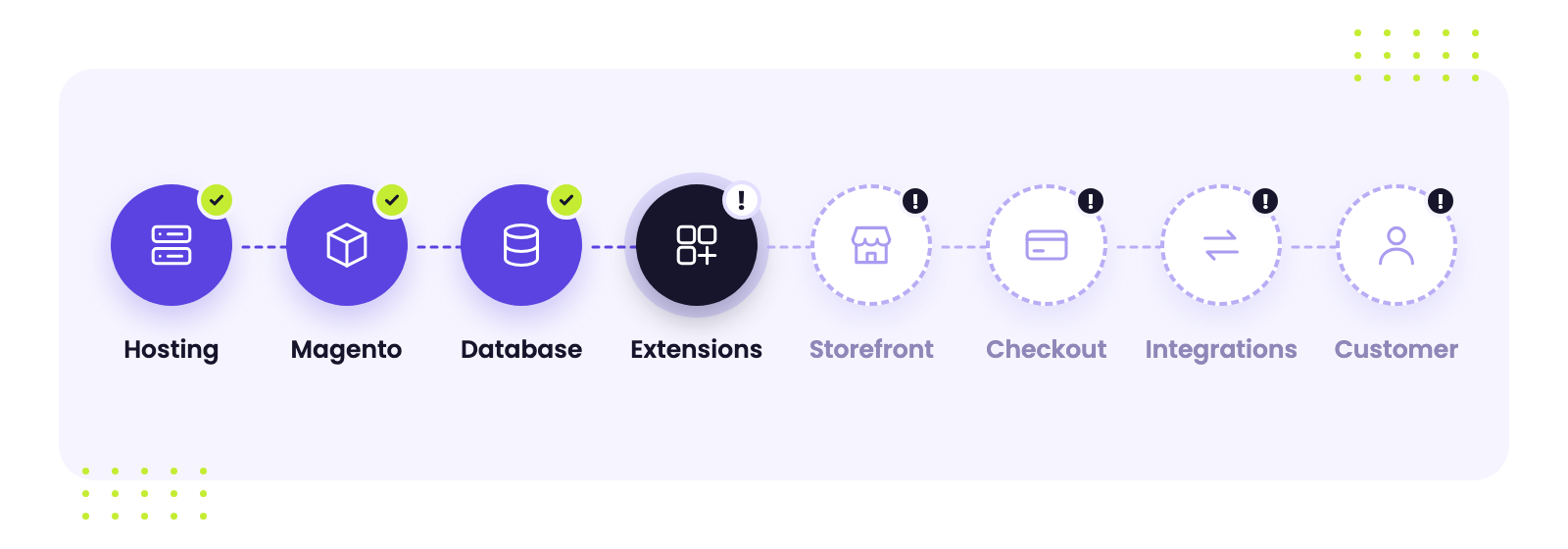
The map below shows how a problem travels through the store. A failure in hosting, the database or an extension reaches the storefront, then checkout, then the customer.
15 Things to Include in a Magento 2 Maintenance Checklist
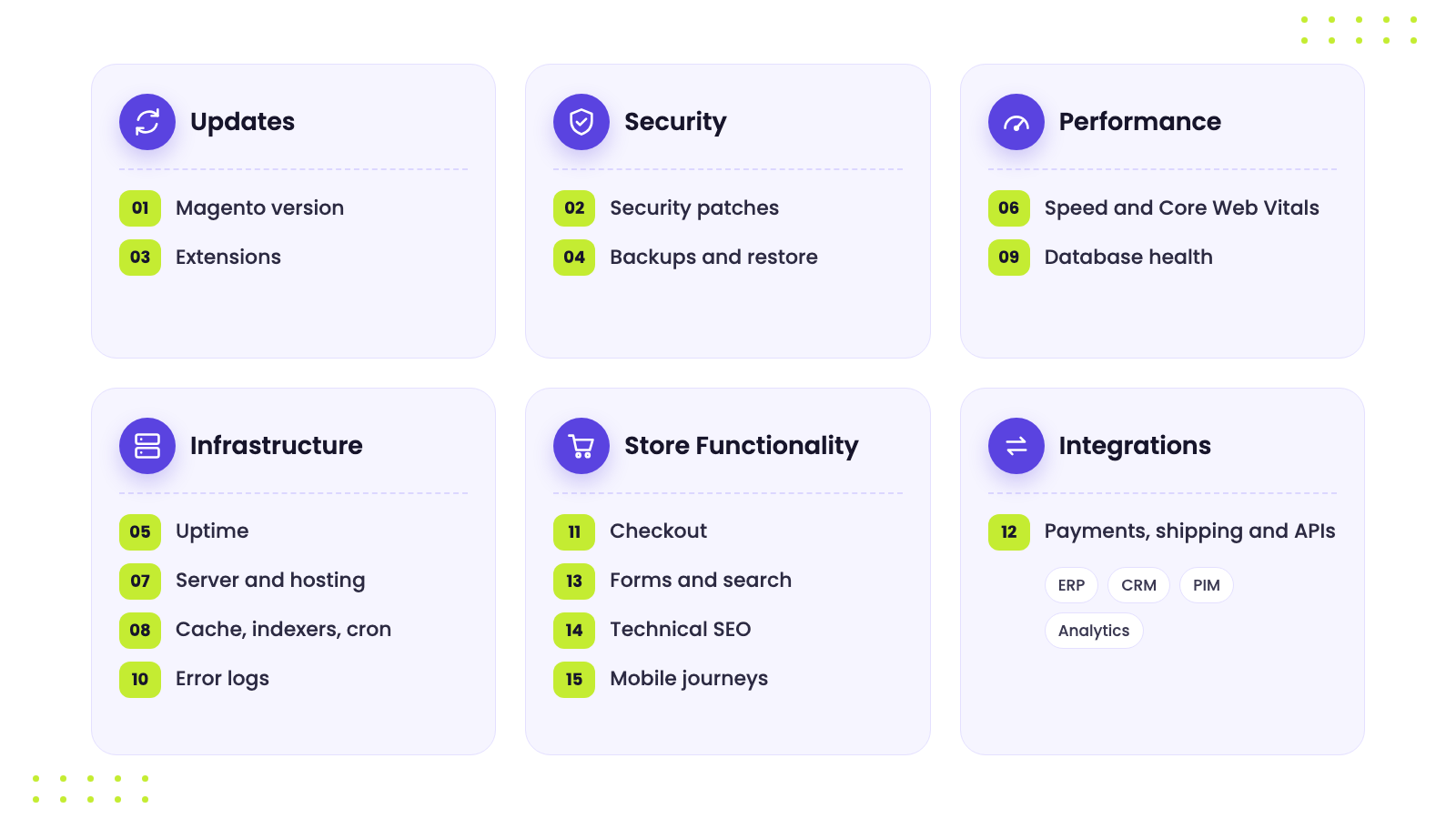
A Magento 2 maintenance checklist should cover six areas: updates, security, performance, infrastructure, store functionality and integrations. Platform and security checks come first, because a problem there affects everything else.
1. Magento and Adobe Commerce Version
Compare the version your store runs with the latest release line. Each version gets standard support until a fixed date, and Adobe’s lifecycle policy lists these dates for Adobe Commerce:
Adobe Commerce version | Released | End of standard support |
|---|---|---|
2.4.6 | March 14, 2023 | August 11, 2026 |
2.4.7 | April 9, 2024 | May 31, 2027 |
2.4.8 | April 8, 2025 | May 31, 2028 |
2.4.9 | May 12, 2026 | May 31, 2029 |
Adobe’s versioning policy says extended support security patches are for Adobe Commerce customers only, so Magento Open Source stores need to upgrade on time. Plan each upgrade a few months ahead and test it on staging first. Our guide on how to upgrade Magento 2 explains the steps.
2. Security Patches and Vulnerabilities
Install critical security patches as soon as Adobe releases them, after a quick test on staging. Adobe’s versioning policy says it ships hotfixes for critical issues as needed, outside the planned releases. Each month, also check:
New security patches and bulletins for your version
Results of Adobe’s free Security Scan Tool, which runs over 21,000 security tests and works for Magento Open Source too
Admin accounts and access logs, such as admin users nobody on your team created
Our Magento security checklist lists other protections to add.
3. Extensions and Third-Party Modules
Every extension adds code that needs updates and testing. Review your installed modules once a month and check that each one:
Supports your current Magento version
Still gets updates from its vendor
Doesn’t conflict with other modules
Is still in use, since disabled modules stay in the code base and can break an upgrade
After every Magento update, test the features that rely on extensions, such as filters, checkout steps and shipping rates.
4. Backups and Restore Process
Back up both the database and the store files, and keep copies outside the production server. A copy on the same server is lost if that server fails or gets hacked. A simple backup plan looks like this:
Task | How often | Where |
|---|---|---|
Database backup | Daily | Off-server storage |
Full backup of files and database | Before every major change | Off-server storage |
Restore test | Every quarter | Staging environment |
A backup helps only if you can restore it, so note how long each restore test takes.
5. Store Uptime and Availability
Set up uptime monitoring for both the storefront and the Magento Admin. Without it, you may learn about an outage from customers or from a drop in sales. Pick a monitoring tool that:
Checks your main pages every few minutes
Sends alerts by email or messenger to the person on duty
Keeps a downtime history you can review
If the store goes down at the same time every week, the cause is often a heavy scheduled task, a backup or a traffic spike your server can’t handle.
6. Page Speed and Core Web Vitals
Measure speed on every important page type: the homepage, category and product pages, search results, cart, checkout and the mobile storefront. Google’s Core Web Vitals set these targets:
Metric | What it measures | Good result |
|---|---|---|
LCP | How fast the main content loads | 2.5 seconds or less |
INP | How fast the page responds to clicks and taps | 200 milliseconds or less |
CLS | How much the layout shifts during loading | 0.1 or less |
Compare the results after every update, new extension or frontend change, since a sudden drop usually points to the latest change. Our tips on Magento performance optimization explain how to fix common slowdowns.
7. Server and Hosting Performance
Short spikes during sales or ad campaigns are normal. Steady growth week after week means the store is close to its limits. Track these numbers:
CPU and memory usage
Disk space, because Magento can’t write logs, sessions or cache files on a full disk
Database load during peak hours
Once a year, check whether your hosting plan still fits your catalog size and traffic.
8. Cache, Indexers and Cron Jobs
Cron runs scheduled tasks, indexers prepare catalog data, and the cache serves pages fast. Adobe’s cron documentation says many important system functions, including indexing, depend on cron. When cron stops, the storefront shows no error, yet:
Prices don’t change
Stock levels stay outdated
Scheduled emails stay in the queue
Check for failed cron tasks every week, look at indexer status in the Admin, and refresh the cache types that Magento marks as invalidated.
Need a Team to Keep Your Magento Store Healthy?
Our Magento developers handle updates, security patches, monitoring and urgent fixes, so your store keeps taking orders.
Choose a Support Package →9. Database Health
The Magento database grows with every order, session and log entry. Log tables, reports and old quotes from abandoned carts take up space and slow down queries. Watch for these signs of trouble:
A slow Magento Admin
Long reindex times
Timeouts at checkout
Clean up old logs and quotes on a schedule, and review slow queries once a month. Our guide to Magento database maintenance covers cleanup and optimization in detail.
10. Error Logs and Exceptions
Magento writes errors to its logs in the var/log folder, and the web server keeps its own error logs. Check both every week and focus on:
Errors that repeat hundreds of times a day
New errors that appear after deployments or updates
Exceptions on checkout and payment pages
Tools like New Relic or Sentry group errors and send alerts, so your team doesn’t have to read raw logs.
11. Checkout and Order Placement
Checkout is where problems cost the most. Run a test purchase at least once a week and after every update, and check each step:
Add a product to the cart and go through checkout
Place the order and check the confirmation page
Make sure the confirmation email arrives
Find the order in the Magento Admin with the right items, totals and status
Use your payment provider’s test mode if it has one, or buy a low-cost product with a real card and cancel the order afterward.
12. Payment, Shipping and Third-Party Integrations
Integrations often break after an update on the other side, which you don’t control. Check API error logs and sync status for:
Payment gateways and shipping carriers
ERP, CRM and PIM systems
Marketplaces
Analytics and tracking tags, or your sales reports won’t match real orders
Confirm that orders, stock and tracking data reach the right systems. If you’re not sure which system should own orders and inventory, our comparison of ERP, OMS and WMS explains what each one does.
13. Forms and Critical Store Functionality
Customers notice right away when forms, login or search stop working. Test these functions every week and make sure their emails arrive:
Contact forms and account registration
Login and password reset
Product search and filters
Wishlist and customer account pages
Search needs extra attention, because shoppers who use it usually know what they want to buy. Our article on e-commerce site search shows what to test.
14. SEO and Storefront Technical Health
Technical changes can cut organic traffic, and you may not see it for weeks. Every month, check Google Search Console for:
New 404 errors and broken redirects
Indexing issues
Pages blocked by a noindex tag or robots.txt after a deployment
Broken internal links
Set up 301 redirects for products you remove. Our guide to e-commerce SEO explains how search visibility turns into sales.
15. Mobile Experience and Critical User Journeys
Some bugs appear only on one browser, device or screen size, and desktop tests won’t catch them. Test the main paths on desktop and on real iOS and Android devices:
Search to product and category to product
Product to cart and cart to checkout
Login to account
Form submission
Repeat a quick check after each frontend change. Once or twice a year, run a deeper e-commerce UX audit to find the steps where shoppers get stuck.
How a Code Audit Made Titan Rig’s Magento Store 6.5x Faster
Titan Rig’s Adobe Commerce store needed 12 to 25 seconds to load a page. Transform Agency fixed code that broke Magento standards and replaced the slow MySQL search with Algolia, so pages now load 6.5x faster on average.
Magento Maintenance Schedule
A Magento maintenance schedule splits the checklist by frequency. Check uptime and checkout daily, performance and logs weekly, updates and security monthly, and run a full health check every quarter. After every major update, run an extra round of tests.
Frequency | What to Monitor |
|---|---|
Daily | Uptime, checkout, payment functionality, critical errors and integrations |
Weekly | Performance, logs, backups, cron jobs, indexers and critical store functionality |
Monthly | Magento and extension updates, database health, security, broken links and technical SEO |
Quarterly | Full store health check, integrations, server resources, mobile UX and performance |
After major updates | Checkout, payments, shipping, extensions, frontend functionality, integrations and tracking |
Critical security patches are the exception to this schedule. Install them as soon as Adobe releases them, after a quick test on staging.
Common Magento 2 Maintenance Challenges
The most common Magento 2 maintenance challenges are outdated versions, delayed security updates and incompatible extensions. Check your store against the full list:
Outdated Magento Versions: Older releases lose standard support and stop getting regular fixes.
Delayed Security Updates: Each week without a critical patch keeps a known hole open.
Incompatible Extensions: Modules built for an older version can break features after an upgrade.
Cron and Indexer Failures: Prices, stock and catalog data stop updating, while the store shows no errors.
Growing Database: Old logs, sessions and quotes slow down queries, the Admin and checkout.
Performance Drops: Pages get slower after updates, new extensions or frontend changes.
Integration Failures: Payment, shipping or ERP connections break after updates on the other side.
Checkout Problems: Errors in the cart, payment or confirmation steps cost sales right away.
Irregular Backups: Old or untested copies won’t help when you need to restore the store.
Lack of Monitoring: Without alerts, you learn about problems only when customers report them.
Is Your Magento Store Getting Slower?
Find out what slows down your pages, database and checkout, and fix it before it costs you sales.
Speed Up My Store →Magento 2 Support and Maintenance: What Requires Regular Attention?
Regular Magento 2 support and maintenance covers platform updates, security, performance, infrastructure, extensions, integrations, the database, checkout, monitoring and troubleshooting. Your own team can handle part of this work, while the rest needs a Magento developer.
Tasks Your Store Team Can Handle
Store managers can run many checks without code changes. Test purchases, form tests, uptime alerts, Search Console reports and manual mobile checks need only Admin access and a clear checklist. Give each check an owner, so it doesn’t get skipped in a busy week.
Tasks That Need a Magento Developer
Version upgrades, security patches, extension updates and module conflicts need a developer who knows Magento. The same goes for cron and indexer issues, database cleanup, server tuning and error log analysis. A mistake here can take the store offline, so every change should go through a staging environment first.
When You Need a Support Partner
Magento 2 website support and maintenance from a partner makes sense when you don’t have Magento developers in-house or your team is busy with new features. A partner can take over updates, monitoring and urgent fixes under a monthly plan.
Before you sign, ask about response times for critical issues and how the partner reports on its work.
Get Expert Help with Magento 2 Support and Maintenance
Regular checks keep a Magento store secure, fast and ready to take orders. Many teams lack the time or the Magento skills to run them every week.
Contact Transform Agency if you’d like our Magento developers to take over updates, security patches and monitoring for your store.
FAQ
What does Magento 2 support and maintenance include?
Magento 2 support and maintenance includes platform and extension updates, security patches, backups, uptime and performance monitoring, and regular tests of checkout, forms and integrations. It also covers troubleshooting when something breaks. Most stores combine scheduled tasks with fixes on demand.
How often should Magento security patches be installed?
Install critical Magento security patches as soon as Adobe releases them, after a quick test on staging. Adobe ships hotfixes for critical issues outside its planned releases, so check for them often. Review the rest of your security updates at least once a month.
How often should Magento extensions be updated?
Check for extension updates every month and before each Magento upgrade. Install them on a staging copy first and test the features they affect. Replace or remove extensions that no longer get updates from their vendors.
How can I monitor Magento 2 performance?
Use Google PageSpeed Insights and Search Console to track Core Web Vitals, and an APM tool like New Relic to see server-side speed. Add uptime monitoring with alerts, and watch server CPU, memory and disk usage. Compare the numbers after every update.
How do you maintain a Magento 2 website?
Follow a checklist and a schedule. Check uptime and checkout daily, logs, backups and cron weekly, updates and security monthly, and run a full health check each quarter. Test every change on staging before it reaches the live store.

Expert in creating engaging written content. Skilled at analyzing audience behaviors and refining strategies to align business goals with customer interests. Proven ability to craft content that connects deeply with audiences. Passionate about staying current with trends to boost engagement.
Expert in creating engaging written content. Skilled at analyzing audience behaviors and refining strategies to align business goals with customer interests. Proven ability to craft content that connects deeply with audiences. Passionate about staying current with trends to boost engagement.