
0%

Magento powers more than 186,000 live websites worldwide, which reflects its continued role in the e-commerce market.
However, a Magento website requires much more than a platform installation. Merchants need to choose a suitable hosting environment, meet Adobe’s current system requirements, plan the store structure, configure the storefront, catalog, payments, shipping, and SEO, and prepare the site for launch. Each technical choice can affect performance, scalability, security, and the customer experience.
This guide explains how to create a Magento website step by step. It covers the key decisions and configuration steps, from hosting and installation to storefront setup, checkout, and launch preparation.
Magento Open Source vs. Adobe Commerce
When you choose a Magento solution for your business, it is important to understand the differences between Magento Open Source and Adobe Commerce, as well as the available deployment options.
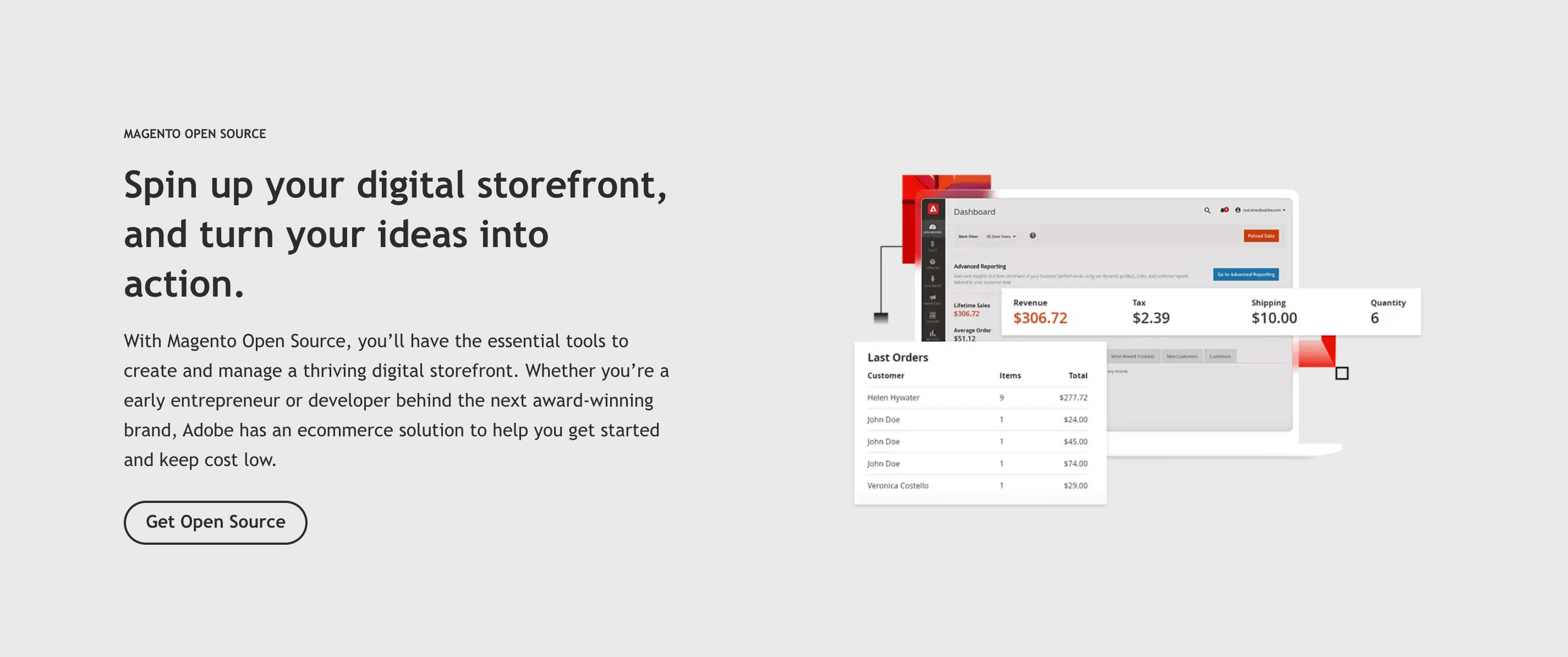
Magento Open Source
Formerly known as Magento Community Edition, this is a free version ideal for small to medium-sized businesses that require a flexible and customizable e-commerce solution. It provides a robust platform for businesses to create unique online stores with essential functionalities. However, it lacks some advanced features and customer support present in the paid versions.
Adobe Commerce
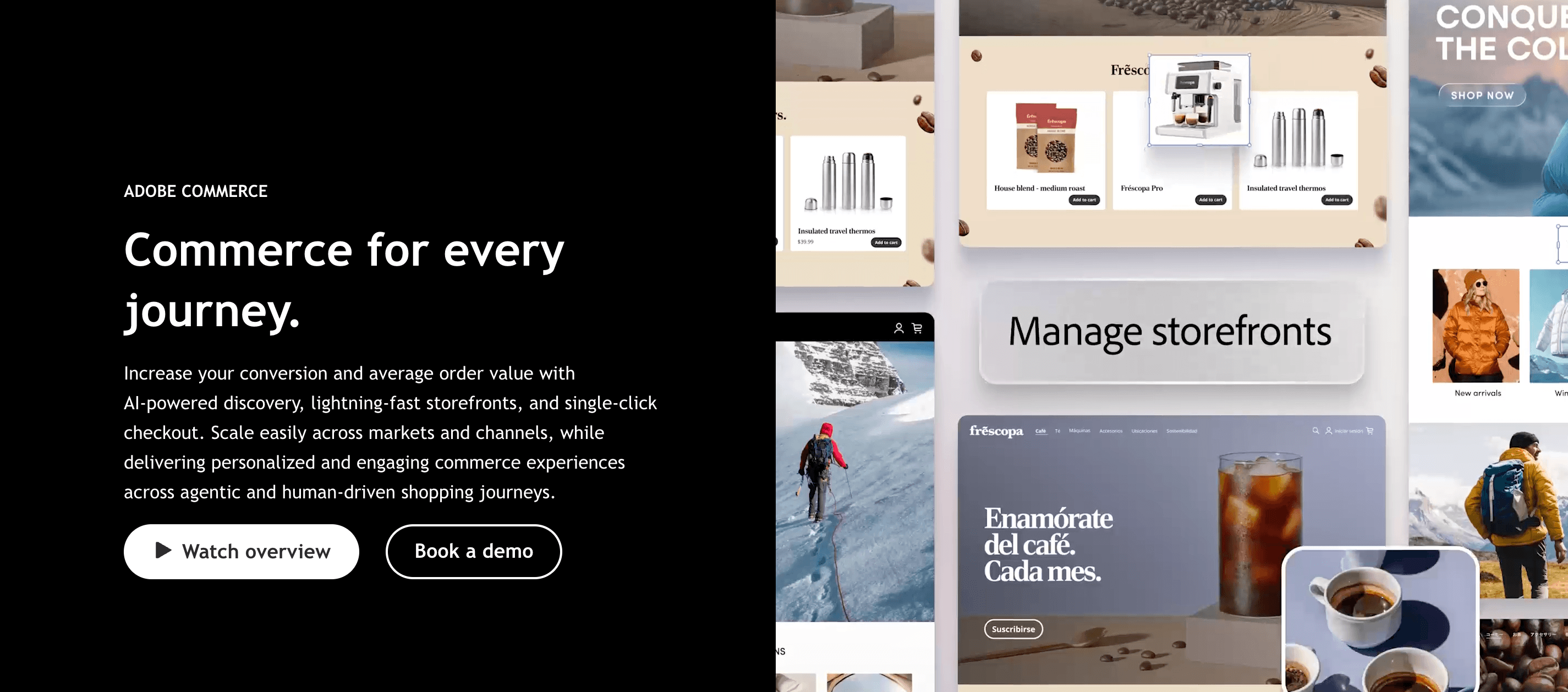
Adobe Commerce, formerly known as Magento Commerce, offers a comprehensive suite of features designed for growing and enterprise-level businesses. This edition includes advanced marketing, merchandising, and business intelligence tools. It supports B2B functionality, enhanced security, and performance optimizations. It also comes with dedicated support and cloud hosting options, making it a powerful choice for larger operations seeking scalability and reliability.
Adobe Commerce is a paid solution, with costs based on a tiered system that considers the size of the business and gross merchandise value (GMV). Prices can start from around $22,000 per year, but they can vary significantly based on customization and additional services required.
Adobe Commerce on Cloud Infrastructure
Adobe Commerce on cloud infrastructure combines the features of Adobe Commerce with the benefits of cloud hosting on Adobe’s robust global infrastructure. This deployment option provides managed infrastructure, cloud development and deployment tools, supported services, and separate environments for development, staging, and production. The seamless integration with other Adobe tools and solutions is an added advantage for businesses looking to leverage a comprehensive digital ecosystem.
Adobe Commerce on cloud infrastructure is a premium deployment option. Pricing depends on factors such as business size, GMV, infrastructure requirements, and the selected Adobe Commerce package.
Need Help With Magento Website Development?Get expert support with Magento website strategy, store setup, custom development, and launch preparation. Discuss Your Magento Website → |
11 Steps to Create a Magento Site from Scratch
A successful Magento website starts with the right technical foundation, so follow these 11 steps to set up, configure, and prepare your store for launch.
1. Choose a Magento Hosting Plan and Domain
Choose a hosting environment that can support your Magento store from launch and as traffic, catalog size, and order volume increase. Before you select a provider or server configuration, compare it with Adobe’s current system requirements.
Check the following before you host a Magento website:
-
PHP and database compatibility: Make sure the hosting environment supports the PHP and database versions required for your Magento or Adobe Commerce release.
-
OpenSearch support: Confirm that the provider supports a compatible OpenSearch version for catalog search.
-
Caching: Check support for technologies such as Redis or Valkey and Varnish where they apply to your Magento version and infrastructure.
-
CDN: Use a CDN to deliver static content closer to customers and reduce load on the origin server.
-
SSL: Make sure the hosting environment supports a valid SSL certificate and HTTPS.
-
Backups: Choose a setup that allows regular backups of the database, media, code, and other critical store data.
-
Staging environment: Use a separate environment to test updates, extensions, theme changes, and configuration before production.
-
Scalability: Make sure the infrastructure can support future traffic growth and additional server resources when necessary.
After you choose the hosting environment, register a domain name that reflects your brand and is easy for customers to recognize and remember.
2. Install Magento 2 on Your Server
Magento Open Source and Adobe Commerce use Composer and command-line tools for installation. Before you start, make sure your server environment meets the requirements you checked in Step 1.
Follow these main steps:
-
Prepare the server environment. Install and configure the required PHP version and extensions, a supported database, a compatible search service such as OpenSearch, a web server, and other required dependencies.
-
Install Composer. Magento uses Composer to manage the application code and PHP dependencies.
-
Get the Magento code through Composer. Create the Magento project in the document root with the appropriate Composer package and version. Adobe Commerce requires authentication credentials for access to the Commerce package repository.
-
Configure the web server and file permissions. Set the document root, file system ownership, permissions, and other server settings before you run the installation.
-
Run the Magento CLI installation. Use
bin/magento setup:installwith the required options for the base URL, database, administrator account, search service, and other store settings. -
Complete the post-installation setup. Configure cron, check the application mode, set up caching and other services, and verify that the storefront and Admin work correctly.
For exact installation commands and configuration details, follow Adobe’s installation guide.
3. Choose a Magento Storefront Approach
Choose a storefront approach that fits your business requirements, technical resources, and performance goals. A traditional Magento theme remains one option, but modern Magento and Adobe Commerce projects can also use solutions such as Hyvä or Adobe Commerce Storefront.
If you choose a traditional Magento theme, review the basics of Magento 2 theme development before you customize the storefront. Select a theme that fits your industry and brand, and pay attention to responsiveness, performance, compatibility, and customization options. You can then adapt the theme through its settings, styles, templates, and a child theme where necessary.
Adobe Commerce Storefront provides another approach for eligible projects. It uses Edge Delivery Services and Commerce components to deliver a modern storefront experience.
4. Configure the Store’s Basic Settings
Before you configure individual settings, plan your Magento store structure. Magento Open Source and Adobe Commerce use three main levels:
-
Website: The top level of the store hierarchy. A Magento installation can contain multiple websites with separate domains and top-level configurations.
-
Store: A website can contain multiple stores. Each store can have its own root category and product selection.
-
Store View: Each store can have one or more store views. Store views often support different languages, locales, or other customer-facing variations.
This structure is especially important for multi-store and multilingual e-commerce projects. Plan it before you configure catalogs, domains, currencies, and localized content.
Next, open Stores > Settings > Configuration in the Magento Admin and configure the essential store settings:
-
Country and location: Set the default country and regional options.
-
Timezone: Select the timezone for the store.
-
Store information: Add the store name, phone number, address, and other business details.
-
Currency: Set the base, default display, and allowed currencies.
-
Store email addresses: Add the email addresses that Magento uses for store communications.
-
Contact information: Configure the contact options for customers.
Check the configuration scope before you save changes, as some settings can apply at the global, website, or store view level.
5. Set Up Magento 2 Catalog and Categories
Navigate to Catalog > Categories
Access the Magento Admin Panel and navigate to the Catalog section. Then click on Categories to integrate the changes.
Choose Scope and Parent Category
- Scope: Decide where the categories will be shown by choosing an option in the Scope field.
- Parent Category: Choose a parent category for the category you are creating in the category tree.
Create a New Category
- Add Subcategory: Click the “Add Subcategory” button.
- Basic Information: Complete some basic information and click “SAVE”.
Configure Display Settings
- Display Options: Configure display options, including filtering and sorting features for category pages.
Configure category SEO Settings
- Meta Title: Fill in the meta title field for the category pages.
- Meta Description: Fill in the meta description field for the category pages.
6. Add Magento Products and Product Types
After categories, you can integrate product attributes and set up product variations. To add products in Magento, follow these steps:
Step 1: Navigate to Product Configuration
- Go to Catalog > Products
- Click on Add Product and complete the product details.
Step 2: Choose Product Type
- Simple Product
- Configurable Product
- Grouped Product
- Bundle Product
- Virtual Product
- Downloadable Product
Step 3: Configure Product Details
- Choose attribute set
- Enter product name, SKU, and description
- Set product price and tax class
Step 4: Configure SEO and Meta Information
- Use page builder to create content.
- Upload photos and edit product descriptions.
- Fill in meta titles and meta descriptions for SEO.
Step 5: Configure Custom Options and Product Recommendations
- Set up custom options for variations.
- Add relevant products for upsell and cross-sell.
7. Configure Tax, Payment Methods, and Shipping for Magento
Before launch, configure the main transaction settings for taxes, payments, and shipping. The exact setup depends on your target markets, business model, and store structure.
| Area | What to Configure |
|---|---|
| Taxes | Set tax rates and tax zones for the regions where you sell. Create tax rules and tax classes for specific customer and product groups. Define tax settings for products, shipping, and customers based on your business and legal requirements. |
| Payment Methods | Choose payment methods that match your target markets, currencies, and customer preferences. Review available Magento payment integrations and select the providers that fit your checkout requirements. Configure offline methods such as Cash on Delivery, Purchase Order, or Bank Transfer where they apply. Define the countries and store scope for each method, and test the checkout before launch. |
| Shipping Methods | Set the shipping origin and shipment policy. Configure methods such as flat rate, table rate, free shipping, or in-store delivery. Define allowed countries, handling fees, and other conditions for each method. Test shipping rates for the main regions you plan to serve. |
8. Configure Your Magento Storefront
After you choose the storefront approach in Step 3, configure the customer-facing pages and content structure of your store.
Start with the key pages and storefront elements:
-
Homepage: Define the main promotional blocks, featured categories, products, and navigation paths.
-
Category pages: Configure product listings, filters, sorting options, and category content.
-
Product pages: Add product information, images, pricing, availability, related products, and other purchase details.
-
CMS pages: Create essential informational pages such as About Us, Contact Us, shipping information, returns, and policies.
-
Navigation: Build a clear menu structure that helps customers reach key categories and pages.
-
Content management: Use the content tools available for your selected storefront, such as Page Builder where supported.
Keep the storefront structure consistent with the catalog, store views, and customer journey you planned in the previous steps.
9. Implement Magento SEO
Optimize your Magento store for search engines, so your site is visible to customers:
- Keyword Research: Identify relevant keywords and phrases for your products and services
- Meta Tags and Titles: Use descriptive and unique meta titles and descriptions for each page
- Header Tags: Organize content using header tags (H1, H2, H3, etc.)
- Image Optimization: Use descriptive and keyword-rich file names and alt tags for images
- Internal Linking: Organize content using logical internal linking
- Content Quality: Focus on high-quality, engaging, and informative content
- Site Speed: Optimize Magento 2 site speed by reducing page load times
- SSL and HTTPS: Install and configure SSL certificates to secure your site
- XML Sitemap and Robots.txt: Generate and submit an XML sitemap and configure robots.txt for crawling and indexing.
10. Magento Extensions: Enhancing Magento Functionality
To ensure that your Magento platform can scale to meet the increased demand of your business, it's essential to integrate third-party extensions that provide advanced functionality, such as product recommendations and personalized offers. This can be achieved through in-house development or by using third-party integrations.
11. Magento Site Launch
Launching a Magento website involves careful planning, configuration, and integration of various components.
Key things to check before the final launch of a Magento website:
Pre-Launch Checklist
- Make sure your Magento or Adobe Commerce version is supported and up to date with the required security patches.
- Verify your system meets Magento's minimum requirements for hardware and software.
- Configure the SSL certificate to establish a secure connection for your store.
- Review and test the store URLs to ensure they are user-friendly and working correctly.
- Check the transactional emails are set up with the correct business email addresses.
- Thoroughly test the product pages, cart, checkout, and payment methods.
- Validate the tax settings and shipping method configurations.
- Customize the 404 error page to provide a better user experience.
Magento 2 Launch Checklist
- Enable search engine indexing and ensure the site is set to index/follow.
- Verify the cron jobs are configured and running as scheduled.
- Test the newsletter subscription functionality.
- Create a full database backup before going live.
- Switch the store to production mode for optimal performance.
FAQ
How to build a website with Magento?
Magento is a popular open-source e-commerce platform for all business sizes. It allows you to build a customizable and scalable Magento website. The Magento platform is built with PHP and offers a wide range of features and functionality to create an engaging online store.
What is the difference between Magento Open Source and Adobe Commerce?
Magento Open Source is a free, open-source e-commerce platform with core store management and customization capabilities. Adobe Commerce builds on the same code base and adds advanced features for enterprise and B2B projects, along with broader support and deployment options.
How much does it cost to build a Magento site?
The cost of building a Magento website can vary depending on factors such as the complexity of the site, the need for custom development, and whether you choose Magento Open Source or Adobe Commerce. Magento is a cost-effective e-commerce solution to meet your specific business needs.
Is Magento good for beginners?
Magento can be a good choice for beginners, as it offers a user-friendly interface. You get a large community of developers and resources to support new users. However, Magento also has a steep learning curve, so that it may be more suitable for those with some experience in e-commerce or web development.
What is Magento built with?
Magento is a PHP-based e-commerce platform with a modular architecture. Its technology stack includes Composer-managed PHP packages, Laminas components, a relational database, a search service such as OpenSearch, and additional services for caching and message queues.
How to build a Magento website for free / beginners?
Magento Open Source is the free, open-source version of the platform. It is a cost-effective option for beginners and small businesses to build their Magento website. The Magento platform offers a wide range of features and functionality to create a customizable and scalable online store.
Is Magento suitable for large enterprise B2B businesses looking for advanced features?
Magento, as an e-commerce platform, offers scalability and flexibility to meet the needs of large, Magento-based enterprises (B2B). With its robust features, Magento allows for extensive customization, advanced features, and comprehensive analytics to elevate customer experiences and enhance user experience.
Why do businesses choose Magento for e-commerce?
Magento Open Source and Adobe Commerce offer flexible architecture, extensive customization, and support for complex e-commerce projects. They suit large catalogs, multi-store setups, international markets, and custom integrations, while Adobe Commerce adds advanced enterprise and B2B capabilities.
Expert Support to Launch a Magento or Adobe Commerce Site
Still unsure about where to start? Creating a Magento website from scratch can create technical issues, especially for merchants new to the platform. The process includes choosing between Magento Open Source and Adobe Commerce, planning the technical architecture, and configuring the store for your business requirements.
Transform Agency's team of top Magento experts can help merchants create captivating e-commerce stores. Our developers have a deep understanding of Magento's architecture, including the process of building a Magento website that aligns with your brand and business goals.
Get expertise in Magento’s web design, technology partnerships, and flexible and scalable solutions. Create an online store that enhances the shopping experience for your customers.
Contact Transform Agency and let Magento experts handle the heavy lifting. Boost your online presence with customizable and user-centric e-commerce solutions.

Written with the assistance of Sergey Girlya
Adobe Commerce Business Practitioner | Certified PSM & PSPO at TA
Sergey ensures project success by validating business cases, defining success metrics, and identifying sustainable benefits. His proactive approach leverages existing systems, processes, and data to deliver additional value. Serge excels in planning, executing, monitoring, and controlling all aspects of the project lifecycle, ensuring meticulous attention to detail and strategic oversight.
Sergey ensures project success by validating business cases, defining success metrics, and identifying sustainable benefits. His proactive approach leverages existing systems, processes, and data to deliver additional value. Serge excels in planning, executing, monitoring, and controlling all aspects of the project lifecycle, ensuring meticulous attention to detail and strategic oversight.