
0%
In This Article:
What is Magento 2 Theme Development?
Magento 2 Theme Structure Explained
Magento 2 Theme Inheritance
Magento 2 Custom Theme Development Best Practices
The Significance of a Custom Theme
Creating a New Custom Theme in Magento 2
Magento 2 Theme Customization Step by Step
How To Apply A Custom Magento Theme
Common Magento 2 Theme Development Mistakes
Magento Theme Tutorial: Step-by-Step Guide
FAQ
Magento 2 custom theme development is the process of building the core framework that controls every customer-facing element of your store.
The common, and often tempting, approach is to search for free Magento themes or install a heavy, pre-built commercial theme. This instantly burdens your site with excess code, rigid design constraints, and fragile upgrade paths, making every change a workaround instead of a clean build.
This guide provides the methodical alternative for true Magento 2 custom theme development. You will learn to construct your theme from an empty folder, creating a codebase that contains only what you need. The result is a storefront with greater speed, simpler control, and genuine design authority.
What is Magento 2 Theme Development?
Magento 2 theme development is the technical process of building and customizing the presentation layer of your Magento store. It goes beyond simple aesthetics to define the structure, layout, and behavior of every page a visitor sees.
At its core, a Magento 2 theme is a collection of files that extend or override the base files of a parent theme. A well-structured theme allows developers to customize the storefront while keeping changes separate from Magento core files.
When creating a Magento 2 theme, follow these best practices:
- Create A Custom Theme Instead Of Editing Default Themes: Avoid modifying Magento default themes such as Luma or Blank directly. Changes made to standard themes can be overwritten during Magento updates and make future maintenance more difficult.
- Use Theme Inheritance: Build your custom theme on top of an existing parent theme and customize only the required elements.
- Keep Customizations Separate From Core Files: Store custom layouts, templates, styles, and frontend assets inside your own theme directory to improve compatibility and simplify future upgrades.
- Follow A Clear Theme Structure: Magento themes use a predefined directory structure where each file and folder has a specific purpose. Understanding this structure is essential for efficient theme development and maintenance.
Magento 2 Theme Structure Explained
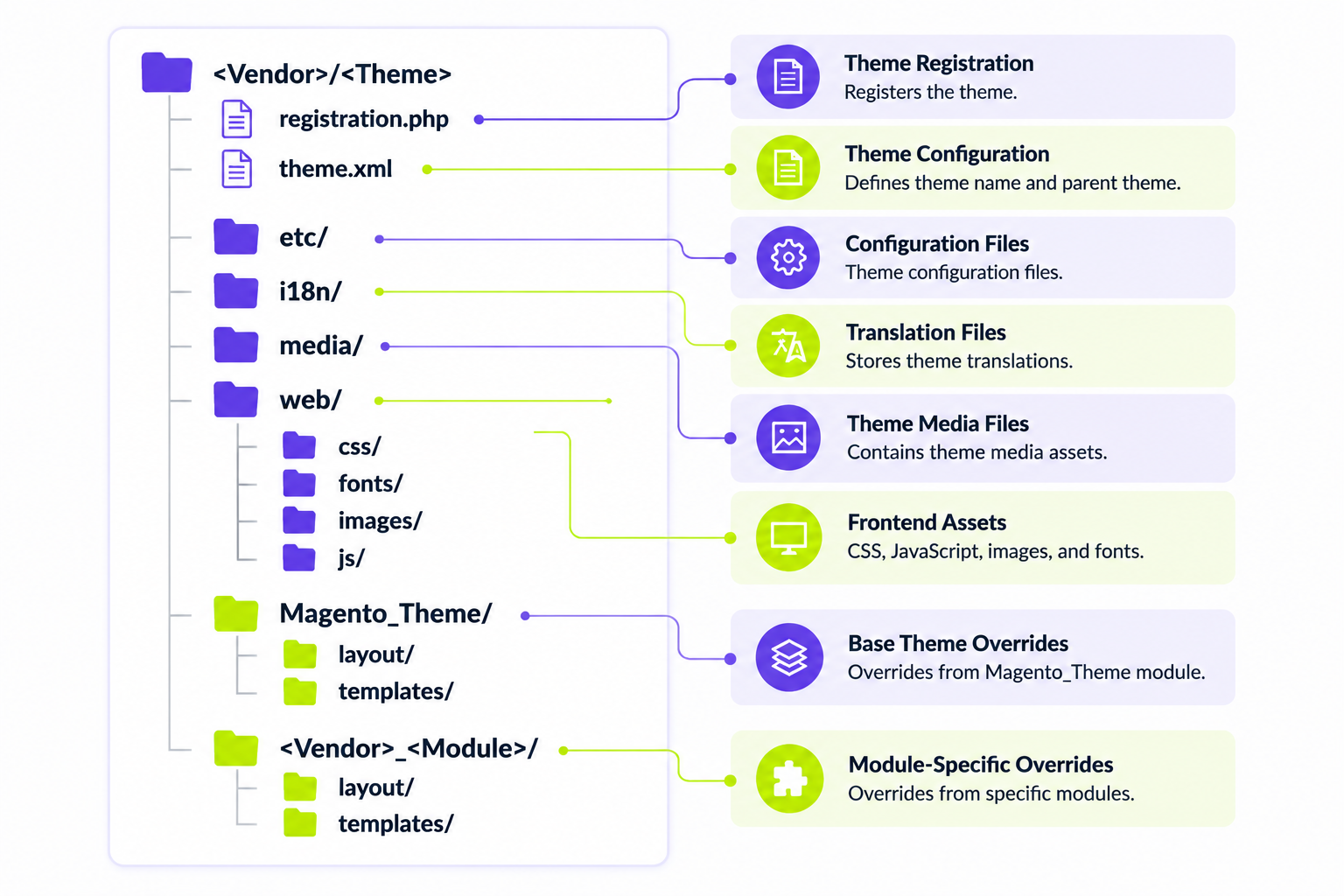
The main files and directories in a Magento 2 theme include:
- Theme.xml: Defines the theme configuration, including the theme name and parent theme. This file determines how the theme relates to existing Magento themes.
- Registration.php: Registers the theme in Magento and allows the platform to recognize and load it correctly.
- Layout Directory: Contains XML files that define the structure of storefront pages. Layout files control blocks, containers, element positioning, and page updates.
- Templates Directory: Stores PHTML template files responsible for rendering the HTML output of storefront components.
- Web Directory: Contains frontend assets used by the theme, including CSS, JavaScript, images, and fonts.
- I18n Directory: Stores translation files that allow storefront content to be adapted for different languages and regions.
- Media Directory: Contains theme-related media assets used in the storefront.
- <Vendor>_<Module> Directory: Stores module-specific customizations, including layout, templates, and static files that override or extend Magento module functionality.
Magento 2 Theme Inheritance: Parent And Child Themes
Magento 2 theme inheritance allows developers to customize a storefront by extending an existing theme instead of changing the original theme files. A child theme inherits layouts, templates, styles, and configuration from a parent theme while allowing developers to override only the required elements.
Parent Theme Vs Child Theme
| Aspect | Parent Theme | Child Theme |
|---|---|---|
| Purpose | Provides the base structure, templates, layouts, and assets for a Magento storefront | Contains custom changes that modify specific parts of the parent theme |
| Files | Includes the original theme files and default functionality | Includes only custom files and required overrides |
| Customization | Defines the standard storefront appearance and behavior | Overrides layouts, templates, styles, and scripts when changes are required |
| Example | Magento/luma or Magento/blank | Vendor/custom-theme |
| Maintenance | Receives updates independently from custom code | Keeps customizations separate and easier to maintain |
How Magento 2 Theme Fallback Works
Magento uses a fallback mechanism to determine which file version should be loaded.
When Magento searches for a theme file:
- It checks the child theme directory first.
- If a custom file exists, Magento uses the child theme version.
- If the file is missing, Magento loads the corresponding file from the parent theme.
For example:
Parent Theme:Magento/luma
Child Theme:Vendor/custom-theme
If the child theme contains:
Magento_Catalog/templates/product/view.phtmlMagento uses this customized template.
If this file does not exist in the child theme, Magento loads the original file from:
Magento/luma/Magento_Catalog/templates/product/view.phtmlMagento 2 Custom Theme Development Best Practices
When creating a Magento 2 custom theme, follow Magento's recommended approach: extend existing themes instead of modifying default Magento files directly.
- Avoid Editing Default Magento Themes: Do not modify standard themes such as Luma or Blank directly, as changes can be overwritten during Magento updates and make future maintenance more difficult.
- Create A Separate Custom Theme: Store your customizations in your own theme directory to keep changes isolated from Magento core files and improve compatibility with future upgrades.
- Use Theme Inheritance: Extend a parent theme and override only the files that require changes. Magento will automatically use your custom files while keeping the remaining parent theme functionality.
- Keep Customizations Lightweight: Avoid copying the entire parent theme. Add only the required templates, layouts, CSS, and JavaScript files to maintain a cleaner and easier-to-support storefront.
- Test Themes After Magento Upgrades: Review layouts, templates, styles, and frontend functionality after Magento version updates to identify and fix possible compatibility issues.
The Significance of a Custom Theme
- Differentiation: A custom theme sets your store apart from others that rely on generic templates.
- Brand Identity: Your website is an extension of your brand. A custom theme allows you to align your online presence with your brand's identity.
- User Experience: User experience plays an important role in the success of your online store. A custom theme allows you to create an intuitive and user-friendly interface.
- Flexibility: With a custom theme, you have full control over the design and layout. This flexibility lets you make changes according to your business needs.
Now that we've established the importance of Magento 2 Theme Development, let's explore how to create a custom theme in Magento 2.
Creating a New Custom Theme in Magento 2
Creating a custom theme in Magento 2 may sound extremely daunting, but Magento provides a robust framework and a user-friendly interface to simplify the process.
Setting the Foundation
Before you can start creating a custom theme in Magento 2, you need to ensure you have the necessary prerequisites in place:
- Magento 2 Installed: Ensure you have Magento 2 up and running on your server.
- Understanding of HTML/CSS: Basic knowledge of HTML and CSS is beneficial, though not mandatory.
- Development Environment: Set up a local or staging environment to experiment with your theme.
Designing a Theme
This Magento theme design guide covers the main steps required to plan the visual structure, assets, and frontend experience of a custom storefront. Here's a brief overview of the design process:
- Define Your Design Goals: Start by outlining the visual elements you want to incorporate into your theme. Consider your brand colors, logo, and the overall look and feel you want to achieve.
- Wireframing: Create wireframes or sketches of your website's layout. This helps you visualize the structure before diving into coding.
- HTML and CSS: Use your HTML and CSS skills to set the basic structure and styling of your theme. Magento 2's theming system uses the LESS CSS preprocessor, making it easier to manage styles.
- Images and Assets: Integrate images, fonts, and other assets to improve the aesthetics of your theme.
Need Custom Magento Development?Build a scalable Magento store with custom features, integrations, and solutions tailored to your business needs. Request Project Estimation → |
Magento 2 Theme Customization Step by Step
Now that you have created a custom theme, it's time to delve into the theme customization process. This involves understanding the key components of Magento 2 themes: layouts, templates, and blocks.
Layouts – The Blueprint
Magento 2 layouts define the structure of storefront pages and control how different elements appear on the page. Layout configuration uses XML files that specify containers, blocks, templates, and frontend assets.
Layouts allow developers to:
- Add new elements to existing pages.
- Remove default Magento components.
- Move blocks and containers to different positions.
- Assign custom templates to storefront elements.
- Load additional CSS and JavaScript files.
Magento 2 layout files are usually stored inside the theme directory:
app/design/frontend/<Vendor>/<Theme>/or inside module-specific folders:
app/design/frontend/<Vendor>/<Theme>/<Vendor_Module>/layout/Common layout files include:
- Default.xml: Defines elements that appear across multiple storefront pages.
- Page Layout XML Files: Control the overall page structure, such as one-column, two-column, or three-column layouts.
- Handle-Specific Layout Files: Apply changes to specific pages, such as product pages, category pages, or checkout pages.
How To Create A Custom Magento 2 Page Layout
Magento 2 allows developers to create custom page layouts through XML configuration files. Custom layouts help control the page structure and define which containers and blocks appear on specific storefront pages.
To create a custom page layout, add a new XML file inside your theme directory:
app/design/frontend/<Vendor>/<Theme>/Magento_Theme/page_layout/For example:
app/design/frontend/<Vendor>/<Theme>/Magento_Theme/page_layout/custom-layout.xmlThe layout file defines the page structure and can include existing containers or add new blocks:
<?xml version="1.0"?>
<layout xmlns:xsi="http://www.w3.org/2001/XMLSchema-instance">
    <container name="main.content">
        <block class="Magento\Framework\View\Element\Template"
               name="custom.block"
               template="Magento_Theme::custom.phtml"/>
    </container>
</layout>
After creating the XML file, the new page layout must be declared in layouts.xml:
app/design/frontend/<Vendor>/<Theme>/Magento_Theme/layouts.xmlOnce registered, the custom layout becomes available for use in Magento pages and can define a unique storefront structure.
Templates – The Visuals
- Magento template development focuses on creating and customizing PHTML files that control how storefront content appears to customers.
- Template Files: Templates are responsible for the visual presentation of your web pages. They determine how content is displayed to users.
- Customizing Templates: You can customize template files to modify the appearance of specific pages or components within your theme.
Blocks – The Building Blocks
- Modular Components: Blocks are modular components that contain specific pieces of content or functionality. They can be reused across multiple pages.
- Creating Custom Blocks: Magento 2 allows you to create custom blocks to add unique features or any content to your theme.
How To Apply A Custom Magento Theme
After creating and registering a custom Magento 2 theme, you need to apply it to the required store view. A newly created theme is not activated automatically after registration.
To apply your custom theme:
- Open the Magento Admin Panel.
- Navigate to Content → Design → Configuration.
- Select the required store view and click Edit.
- Find the Applied Theme field and choose your custom theme.
- Save the configuration changes.
After activation, Magento loads the selected theme files according to the theme inheritance and fallback rules. This allows your storefront to use custom layouts, templates, styles, and frontend assets from the new theme.
Before applying a theme to a live store, test it in a development or staging environment to verify that all storefront elements work correctly.
Common Magento 2 Theme Development Mistakes
Magento 2 provides a flexible theme architecture, but incorrect customization approaches can create maintenance issues, compatibility problems, and upgrade risks. Avoiding common mistakes helps developers create more stable and scalable storefronts.
- Editing Magento Default Themes Directly: Avoid changing Luma, Blank, or other Magento core theme files. Direct modifications can be lost after Magento updates and make future maintenance more complicated.
- Copying The Entire Parent Theme: Do not duplicate all parent theme files into a child theme. Override only the files that require changes to keep the theme lightweight and easier to maintain.
- Ignoring Theme Inheritance: A missing or incorrect parent theme configuration can lead to duplicated code and unnecessary customization work.
- Using Layout Overrides For The Wrong Purpose: Layout XML is useful for changing page structure, but some functionality changes require a custom module instead of theme modifications.
- Storing Changes Inside Vendor Files: Custom code should not be placed inside Magento or third-party vendor directories because updates can overwrite these changes.
- Using An Incorrect Theme Directory Structure: Magento themes require a specific folder and file organization. Incorrect placement of layouts, templates, or assets can prevent customizations from loading correctly.
- Skipping Upgrade Testing: Magento version updates can affect templates, layouts, and frontend assets. Always test custom themes after upgrades to identify compatibility issues.
- Adding Excessive Frontend Assets: Unnecessary JavaScript and CSS files can affect storefront performance. Load only the assets required for your custom functionality.
- Ignoring Responsive Design Testing: A Magento theme should work correctly across different screen sizes and devices. Always test desktop and mobile storefront experiences.
Traditional Magento Themes vs Hyvä Themes
Magento storefronts can use different frontend approaches depending on project requirements, performance goals, and development strategy. Before starting theme development, it is important to understand the difference between traditional Magento themes and Hyvä Themes.
| Aspect | Traditional Magento Themes | Hyvä Themes |
|---|---|---|
| Frontend Approach | Based on Magento's default frontend architecture with technologies such as RequireJS, Knockout.js, and LESS | Uses a modern frontend approach focused on simplicity and performance |
| Theme Structure | Follows the standard Magento theme system with layouts, templates, XML configuration, and static assets | Uses Magento theme concepts while introducing a different frontend development workflow |
| Development Process | Requires work with Magento frontend technologies and default rendering mechanisms | Provides a streamlined approach with modern frontend practices |
| Customization | Developers customize layouts, templates, CSS, and JavaScript within the Magento theme structure | Developers use Hyvä-specific tools and approaches for storefront customization |
| Best Fit | Suitable for stores that rely on the traditional Magento frontend stack or existing themes | Suitable for merchants who want a different frontend architecture with a focus on performance and simplified development |
Build A Faster Magento Store With HyväGet expert Hyvä development, customization, and integration services for your Magento storefront. Get Hyvä Development Help → |
Magento Theme Tutorial: Step-by-Step Guide
This Magento theme integration step-by-step guide explains how to prepare, create, register, and apply a custom theme in Magento 2.
Step 1: Preparing Your Workspace
Before diving into coding, it's crucial to set up your workspace correctly:
- Install Magento 2: Ensure that you have Magento 2 installed and configured on your server or local environment.
- Development Tools: Install the necessary development tools, including a code editor and version control system.
Step 2: Creating a Theme Directory
In this step, you'll begin building the structure of your custom theme:
- Create Theme Directory: Create a new directory for your custom theme within the "app/design/frontend" directory of your Magento installation.
- Define Theme Properties: Inside your theme directory, create a "theme.xml" file to define essential theme properties such as the parent theme and theme name.
Step 3: Defining Theme Properties
In this step, you'll define crucial theme properties in your "theme.xml" file:
- Theme Name: Specify a unique name for your theme.
- Parent Theme: If your custom theme is based on an existing theme, specify the parent theme.
- Theme Registration: Register your theme by adding it to the "registration.php" file in your theme directory.
Step 4: Creating Custom Theme Files
Now, let's create the necessary files for your theme:
- Create Directories: Create directories for CSS, templates, and layout files within your theme directory.
- CSS Styling: Add your custom CSS styles to the appropriate CSS files within the theme.
Step 5: Registering the Theme
To activate your custom theme, you need to register it:
create a "registration.php" file in your file directory and include code to register your theme.
Step 6: Applying the Theme
Finally, it's time to apply and activate your custom theme:
- Open Theme Configuration: Log in to your Magento 2 admin panel and navigate to Content → Design → Configuration.
- Select Your Store View: Choose the required store view and click Edit.
- Apply Your Theme: In the Applied Theme field, select your custom theme.
- Save Changes: Save the configuration to activate your theme on the storefront.
After activation, Magento will load your custom layouts, templates, styles, and frontend assets according to the theme inheritance and fallback rules.
Conclusion: Taking Control of Your Storefront
You now have the practical steps to build a solid foundation for your store. This guide provided the core principles of custom Magento theme development, shifting your role from a theme installer to a theme creator.
A true Magento custom theme development approach creates a lean, purpose-built framework instead of a simple visual skin. When you start from an empty directory, your theme includes only essential code. This results in better performance, simpler maintenance, and a storefront that truly matches your brand.
This foundation prepares you for any future Magento theme customization. You can make subtle tweaks or major overhauls with confidence, using layouts, templates, and styles in a structured and safe way.
For expert help to execute your vision, Transform Agency delivers high-performance custom Magento theme development. We can optimize a new theme or refine an existing store. Contact us today to upgrade your store's design, function, and results.
FAQ
What is the default Magento 2 theme?
Magento 2's default theme is Luma. It serves as a fully functional reference theme that demonstrates Magento's frontend capabilities. For custom theme development, Magento Blank is often used as a parent theme because it provides a minimal structure without extensive styling.
How to create a custom Magento theme?
Creating a Magento 2 theme requires a new theme directory inside app/design/frontend/<Vendor>/<ThemeName>, along with essential files such as theme.xml and registration.php. Developers then define the parent theme and add custom CSS, templates, layout XML files, and frontend assets.
How to create a child theme in Magento 2?
A child theme inherits files and configuration from a parent theme while allowing developers to add custom changes. To create a child theme, define the parent theme in the theme.xml file and add only the files that require customization instead of copying the entire parent theme.
What is the difference between a parent and child Magento theme?
A parent theme provides the base files, layouts, templates, and assets for a Magento storefront. A child theme extends the parent theme and contains only the files that require customization. Magento checks the child theme first when loading files. If a custom file does not exist, Magento automatically uses the corresponding file from the parent theme.
How do Magento 2 layouts work?
Magento 2 layouts define the structure of storefront pages through XML configuration files. Layout XML files control blocks, containers, templates, and the position of page elements. Developers can use layouts to add, remove, or move storefront components without modifying Magento core files. This approach keeps theme customizations organized and easier to maintain.
How do I edit or customize my Magento theme?
Magento theme customization is done by overriding specific files inside a custom theme directory. Developers can modify styles through CSS or LESS files, update HTML output through PHTML templates, and change page structure through layout XML files.
How to customize the Luma theme in Magento 2?
The recommended method is to create a child theme of Luma, not to edit Luma directly. This preserves Luma's integrity for future updates. Create your theme with Luma set as the parent in theme.xml. Then, place only the files you wish to change (e.g., a specific CSS file, a header template) into your child theme's folders. Your overrides will take precedence, allowing you to tailor the look and feel while leveraging Luma's robust foundation.
Should you use a custom Magento theme or Hyvä?
The choice between a traditional Magento theme and Hyvä depends on project requirements, frontend architecture, development resources, and long-term maintenance plans. Traditional Magento themes follow the default Magento frontend approach, while Hyvä uses a different frontend architecture with a focus on modern development practices and simplified storefront customization.
How do you create a custom Magento theme in Magento 2?
To create a custom Magento theme, developers need to create a theme directory, add configuration files such as theme.xml and registration.php, define the parent theme, and add custom layouts, templates, styles, and frontend assets. A custom theme should include only the files required for customization to keep the storefront structure clean and easier to maintain.

With 7 years of experience in the IT industry, Yaroslav specializes in e-commerce solutions. He has developed approximately 15 online stores, ranging from medium-sized shops to large marketplaces, gaining extensive experience across various industries including financial services, retail & distribution, and life sciences & healthcare. Skilled in Adobe Commerce, he excels in frontend development solutions for this CMS.
With 7 years of experience in the IT industry, Yaroslav specializes in e-commerce solutions. He has developed approximately 15 online stores, ranging from medium-sized shops to large marketplaces, gaining extensive experience across various industries including financial services, retail & distribution, and life sciences & healthcare. Skilled in Adobe Commerce, he excels in frontend development solutions for this CMS.