
0%
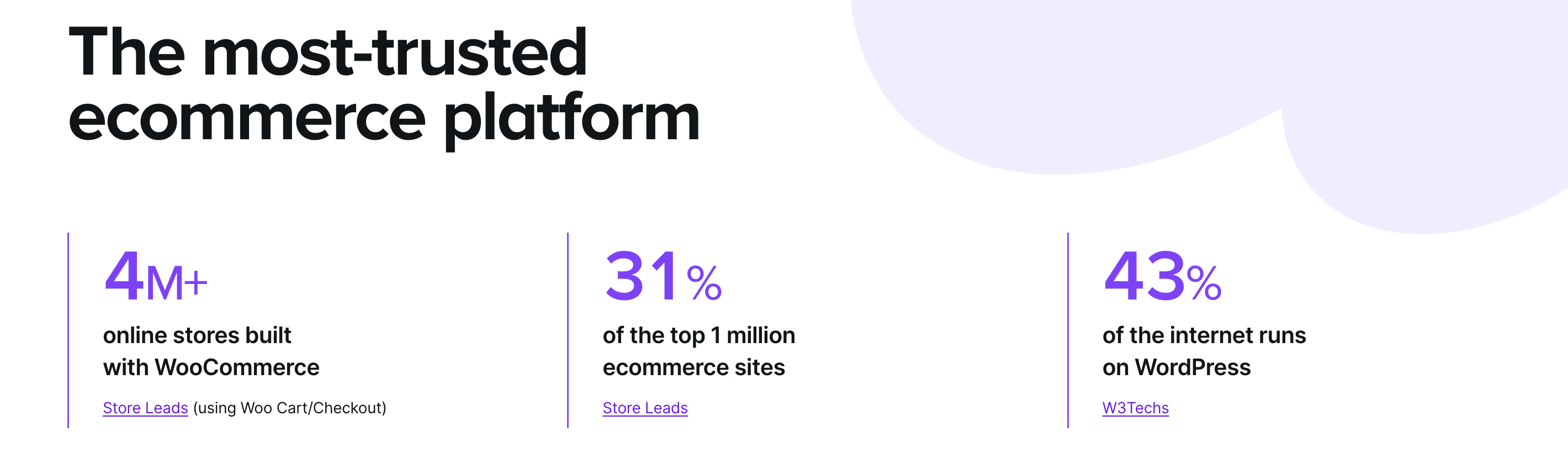
WooCommerce is an open-source e-commerce platform that transforms WordPress websites into fully operational digital stores selling various products and services. Open-source platforms are designated "open-source" because the code is free and available to anyone to view, modify, and distribute. In other words, users expressly control the code that generates WooCommerce for WordPress site owners.
Open-source e-commerce platforms like WooCommerce provide community-driven development, free usage, plugin extension, and customization options. They're also self-hosted, which allows businesses to construct their web storefronts without paying licensing costs.
Why Speed is Crucial for Your WooCommerce Store
A consistently fast website speed is vital to the success of e-commerce store websites. Optimizing page speed is among the most important factors influencing user satisfaction, retention, and business success.
Comprehensive research on speed optimization for B2C websites shows that those that load in under 2 seconds have better conversion and bounce rates. Mobile users are even more sensitive to site speed and expect quick loading on cell phones or tablets. Either because of impatience or questioning the website's functionality, visitors will quickly abandon the slow site and search for other similar online stores.
These statistics emphasize how critical fast website speed is for WooCommerce store owners:
- Google's first-page results average load times of 1.5 seconds
- Load times of two to three seconds increase bounce rates by 32%
- Customer satisfaction decreases by 15% when product pages fail to load in two seconds
- 53% of mobile users abandon sites that take over three seconds to load
- For every one-second page loading delay, conversion rates drop by 7%
The Core Web Vitals consider website speed a pivotal element and Google uses it in SEO rankings. A slow-loading store impacts user experience and significantly diminishes visibility in search engine results. In addition to losing many potential customers and experiencing poor conversion rates, WooCommerce sites with slow pagespeed can push your e-commerce store down in rank on search returns and make it even harder for people to find your store.
Common Causes of a Slow WooCommerce Store
Before we get to speed optimization tips and tricks, let’s first analyze the most common reasons for slow WooCommerce website speed.
Unoptimized WooCommerce Hosting Environment
Signs of an unoptimized WordPress hosting environment include:
- Inadequate server resources (insufficient CPU, RAM, or storage).
- Shared hosting limitations (sites are competing with other websites for resources).
- Outdated server software.
- Poor server configuration settings for caching, memory limits, compression, or database queries.
- Distant server location increasing wait times.
- Lack of content delivery network (CDN), which can lengthen load times for distant users.
- Inefficient database management.
- Absence of server-side caching mechanisms.
- Lack of HTTP/2 support.
Heavy Themes or Too Many Plugins
Feature-rich themes and excessive plugins can significantly slow down a WooCommerce store in several ways:
- Increasing server load (more code to process, higher CPU and memory usage, extra database queries).
- Potential for conflicts among multiple plugins.
- Unnecessary storage of data and tables.
- Caching challenges.
- Functional overlap between plugins.
Uncached Dynamic Content
WooCommerce creates dynamic content on product and cart pages. When content is uncached, pages take longer to load, reducing your store's ability to load swiftly and smoothly. This delay can cause higher bounce rates and unfavorable user experiences that negatively impact conversion rates.
Oversized Images and Files
Large, uncompressed images and files are the primary contributors to slow load times. Unoptimized media can dramatically increase the time pages take to display fully. Large file sizes carry heavy data transfer burdens and longer download times.
For example, a 4 MB image takes much longer to download than a 400 KB image because the MB image contains ten times more data than the KB image. One 4 MB image carries the same data load as a 4000 KB image. Furthermore, bigger files require more processing power from both the server and the user's browser, resulting in slower page load times.
Unoptimized Database
Poorly designed databases need more queries to get the same data, resulting in slower response times. A lack of sufficient indexing can cause MySQL to scan whole tables, slowing data retrieval. In rare circumstances, database tables fragment, delaying read/write operations.
WooCommerce relies on WordPress's post and postmeta (wp_postmeta) tables, which can expand exponentially and slow down queries. The post and postmeta tables are central components of the WordPress database structure, which consists of basic information, columns for post ID, post content, post title, and storage of custom fields.
Streamlining the database architecture and queries, coupled with appropriate caching strategies, can substantially improve the loading and display speed of your WooCommerce site.
Third-Party Scripts and External Resources
External scripts, such as ad trackers, widgets, or third-party integrations (analytic tools, marketing automation scripts, font loading services), are typical offenders in slowing down web page loading speeds. Although these integrations improve website functionality and user experience, they may increase HTTP requests and JavaScript files required for download and execution.
Get in touch
with our expert
Discuss your project requirements and get a free estimate.
Get in touch
with our expert
Discuss your project requirements and get a free estimate.
How to Speed Up Your WooCommerce Store
At last, let’s review the most effective practices that can help you speed up your WooCommerce store.
1. Optimize Your Hosting and Server Environment
- Choose WooCommerce-Optimized Hosting – Choose a WooCommerce-optimized hosting plan —shared, VPS, or dedicated— to ensure your store runs on a server with outstanding performance metrics. This investment increases loading times and general dependability, ensuring customers have a positive shopping experience.
- Enable GZIP Compression – GZIP compression uses a lossless compression algorithm that identifies repeating sequences of bytes and replaces them with shorter sequences. By assigning fewer bits to repeated sequences and more bits to uncommon sequences, GZIP reduces file sizes, allowing web pages to load and display all elements quickly. To enable GZIP compression on WordPress sites, use WP Rocket, W3 Total Cache, or other caching/optimization plugins with built-in options to activate GZIP compression.
2. Optimize Themes and Plugins
- Select Lightweight WooCommerce Themes – Pick a lightweight and speed-optimized WooCommerce theme. An optimized WooCommerce theme includes automatic minification of the main CSS file and extracting and inclining the minimum set of CSS necessary to load web pages' above-the-fold content.
- Remove Unnecessary Plugins and Add-ons – To reduce load times, delete unnecessary plugins or add-ons from your store. Bloated plugins contain unnecessary code and loading scripts that send too many database queries. Redundant plugins provide functionality but are already available in WooCommerce core plugins. Both types of plugins can delay website loading speeds.
- Use Only WooCommerce-Specific Plugins – For a complete list of WooCommerce plugins, visit their website here.
3. Optimize Images and Media Files
- Compress Images – Use image compression plugins or other image optimization tools to reduce the file size of images without compromising quality.
- Use WebP Format for Images – Switch to WebP image format, which provides better compression than JPEG or PNG, to increase load times and improve bounce and conversion rates.
- Lazy Load Images and Videos – Lazy loading delays the loading of images and videos until they are about to appear on the screen, improving page load speed.
4. Perform Database Optimization
- Clean Up and Optimize the WooCommerce Database – Regularly clean and optimize your database by deleting old transients, revisions, and spam comments to keep your database running smoothly.
- Limit Post Revisions and Transients – Cap the number of post revisions and transients stored in your database to prevent data bloat.
To limit post revisions:
- Go to your WordPress/WooCommerce site root directory using FTP or other file manager
- Open wp-config.php
- Add define('WP_POST_REVISIONS', 3)
- Change the number three to the limit you prefer
You can also use a plugin or a WooCommerce-specific approach to restrict post revisions.
5. Utilize Content Delivery Network (CDN)
CDNs speed up your WooCommerce store pages by:
- Using distributed server networks to reduce the distance between your store's content and users trying to access that content
- Caching static assets like CSS, JavaScript files, and images on edge servers. When requests come in, the nearest CDN server transmits static assets, expediting page loading
- Utilizing sophisticated routing algorithms to deliver and display content quickly and without lag
- Compressing files in real-time
- Managing traffic spikes during peak times to prevent delays in page loading
- Minimizing processing demands by handling SSL/TLS encryption
How to Integrate CDN with WooCommerce
Select a CDN provider that accommodates your budget, expectations, and needs. Follow your CDN provider's guidelines for setting up and configuring the CDN for a WooCommerce store.
6. Update Your PHP Version
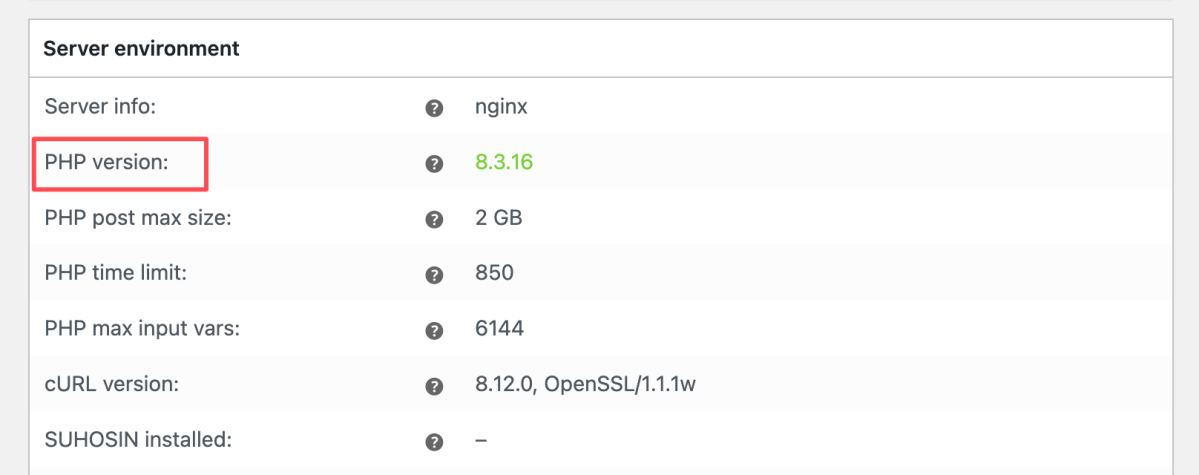
Your WooCommerce store runs on PHP, and just like any other software, newer versions are significantly faster, more efficient, and more secure than their predecessors. Running on an outdated PHP version is one of the most common, yet easily fixable, culprits for a slow store.
The Performance Impact
- Raw Speed – Each major PHP release (especially the transition from PHP 7.x to 8.x) brings significant performance optimizations. This can translate into a noticeable reduction in page load times and the ability to handle more visitors simultaneously.
- Efficiency – Newer PHP versions consume less memory and complete tasks more quickly, meaning your server can process requests much more efficiently.
- Security – Older versions of PHP eventually reach their "End of Life" and no longer receive security patches, leaving your store vulnerable to attacks.
Action Steps
- Check Compatibility – Before updating, ensure your WordPress, WooCommerce, theme, and all plugins are running their latest versions. Most reputable developers keep their code compatible with modern PHP.
- Use a Supported Version – Always aim for a currently supported PHP version (e.g., PHP 8.2 or 8.3 are highly recommended at the time of this update) for the best performance and security.
- Perform the Update – Most hosting providers let you change the PHP version directly from your hosting control panel (like cPanel or Plesk). Always do this on a staging/test site first to catch any potential compatibility issues before going live.
7. Increase Your PHP Memory Limit
WooCommerce and its various plugins, particularly during complex tasks like updating products, running reports, or checking out, can be quite resource-intensive. If your store hits the default, often low, PHP memory limit, you'll run into fatal errors like the dreaded "Allowed memory size of X bytes exhausted" message, which crashes your process or even the entire site.
Why It Matters for Performance
- Stability – Increasing the memory limit ensures there's enough "workspace" for WordPress and WooCommerce to function without abruptly crashing or returning the infamous "White Screen of Death."
- Smoother Operations – More memory allows background processes, heavy-duty plugins, and the WordPress admin dashboard to run smoother and faster, which directly impacts the speed of managing your store.
How to Fix the Limit
While your hosting provider sets the maximum allowed limit, you can typically increase the limit for WordPress itself by editing a core configuration file:
1. Edit wp-config.php: Access your site's files via an FTP client or your host's file manager. Find the wp-config.php file in the root directory and insert the following line before the line that says /* That's all, stop editing! Happy blogging. */:
PHP
define( 'WP_MEMORY_LIMIT', '256M' );
A value of 256M or 512M is generally a good starting point for a fast WooCommerce store.
2. Consult Your Host: If the change doesn't take effect, your host may be overriding the setting in the main server configuration (php.ini). Contact their support team and ask them to increase the PHP memory_limit for your account.
8. Prevent Brute Force Attacks
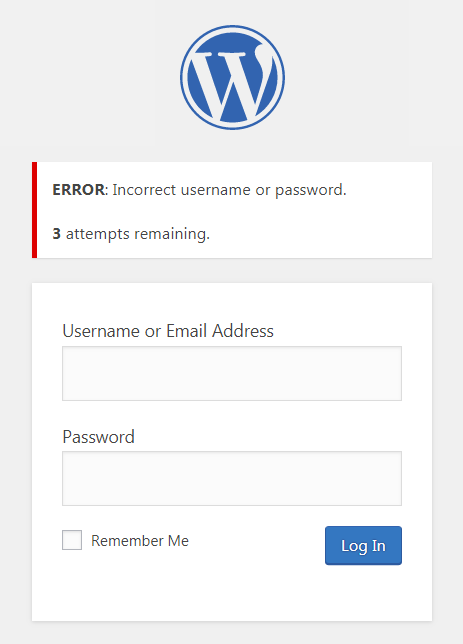
Constant brute force attacks (automated bots that guess passwords) create a huge, hidden drag on your store's speed. Every failed login attempt forces your server to use CPU and memory, which steals resources from legitimate customers who try to shop.
Quick Fixes to Boost Performance
- Limit Login Attempts – Install a security plugin (like Limit Login Attempts Reloaded) to automatically ban IP addresses after just a few failed attempts. This instantly stops the resource drain from persistent bots.
- Change the Login URL – Use a simple plugin (WPS Hide Login) to move your login page from the default /wp-admin/ to a secret custom URL. This immediately blocks 99% of automated attacks that target the standard path.
- Strong Passwords – Always use long, unique, and complex passwords for all administrative accounts to make brute force guessing virtually impossible.
9. Use Anti Spam Plugin
Spam comments and fake registrations fill up your database, leading to unnecessary bloat that directly slows down your WooCommerce store. Combatting spam is a key speed optimization strategy.
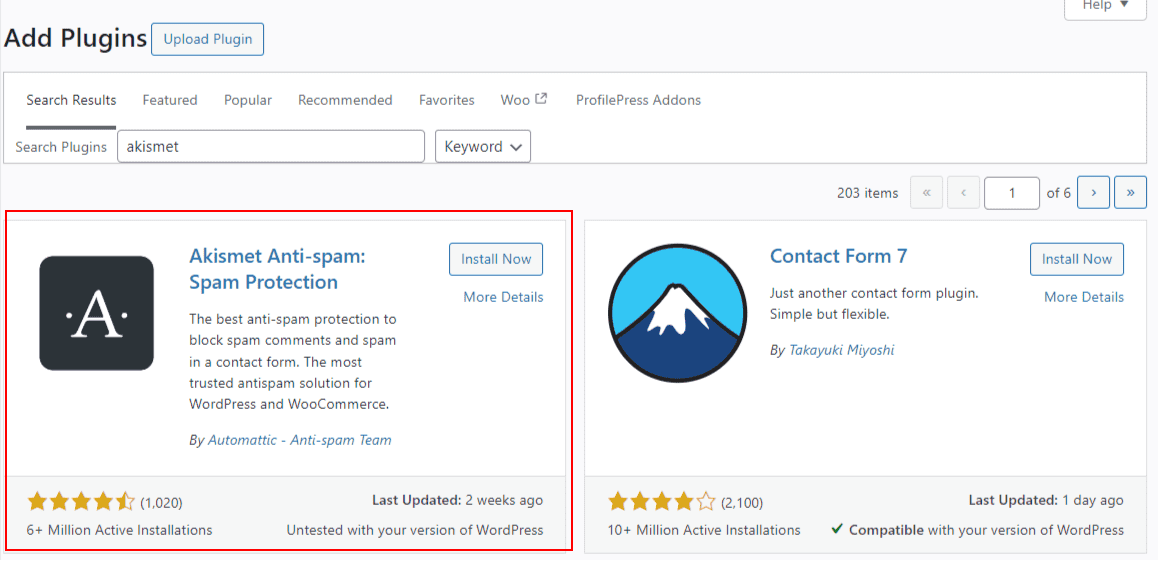
- Install Akismet – The most common solution is the Akismet anti-spam plugin. It cross-references comments against its global spam database, effectively blocking unwanted content from reaching your site.
- Automate Filtering – Once installed and configured with the required API key, Akismet automates the spam filtering process. This prevents the resource strain caused by your server having to process and store huge volumes of junk data.
- Preserve Speed – By keeping the database clean, you ensure that legitimate queries required for product loading and checkout remain fast, contributing to the sustained speed and efficiency of your online store.
10. Disable AJAX Cart Fragments
To provide a dynamic shopping experience, WooCommerce uses AJAX cart fragments. This script automatically updates the cart contents and count in the header without requiring a page refresh. However, this convenience comes at a performance cost, as it can generate significant extra server requests on every page load, even those that don't primarily focus on the cart.
Disabling this feature is a highly effective way to improve site speed, particularly on content-heavy pages like the homepage, blog posts, and product listings.
How to Disable Cart Fragments
You can disable the script by adding a small code snippet to your theme's functions.php file. The following example removes the script from the homepage:
add_action( 'wp_enqueue_scripts', 'dequeue_woocommerce_cart_fragments', 11 );
function dequeue_woocommerce_cart_fragments() {
    if ( is_front_page() ) {
        wp_dequeue_script( 'wc-cart-fragments' );
    }
}
You can customize this by changing the conditional tag. For example, use is_single() to target blog posts, is_shop() for the main shop page, or remove the condition entirely by deleting the if statement to disable fragments site-wide.
Configure the Add-to-Cart Behavior
After disabling the fragments, it's recommended to change the add-to-cart behavior to ensure a smooth user experience.
-
Go to WooCommerce → Settings.
-
Click on the Products tab.
-
Select the Redirect to the cart page after successful addition option.
-
Scroll down and click Save changes.
This setting will immediately take customers to the cart page after adding a product, providing clear confirmation of their action.
WooCommerce-Specific Optimizations
Here are some additional tips that can only work for WooCommerce:
Enable Object Caching
To configure object caching in WooCommerce, go to WooCommerce > Settings > Search > Cache > Object Cache. Then, check the box to enable object caching.
Disable Cart Fragments
The WooCommerce cart fragments API may sometimes interfere with web page loading times. AJAX requests for cart fragments can stress server resources, especially in slower WordPress hosting environments.
Turning off this feature can improve loading times and overall store performance. What’s more, disabling cart fragments conserves server resources on pages without products and prevents conflicts with caching plugins.
Optimize WooCommerce Cart and Checkout Pages
Plugins like the Checkout Field Editor simplify the checkout process for customers, making them more likely to return to your WooCommerce store. To enhance customer experience and reduce page load times, try implementing a one-page checkout format instead of a two-page checkout format. Remove unnecessary headers, footers, and sidebars that distract visitors from buying items in their carts.
Control Inventory and Avoid Overloading Server Resources
To enable automatic stock tracking, go to Settings > Products > Inventory and select the “Manage Stock” option. You can also configure low and out-of-stock limits to notify you when your inventory runs low. To avoid overloading server resources, optimize database performance using plugins to maintain an uncluttered database and improve website loading times.
Boost Your WooCommerce Store Performance with Transform Agency
Unlock your store's full potential with expert WooCommerce page speed optimization from Transform Agency. Our proven strategies are designed to boost your Google ranking, increase conversions, and drive sustainable growth. Let's achieve your e-commerce goals together—get in touch to begin.
FAQ
Why is my WooCommerce so slow?
A slow WooCommerce site is often caused by unnecessary AJAX requests, like cart fragments, which load on every page. Other common reasons include large, unoptimized product images, inadequate hosting plans, and a lack of effective caching. Too many plugins can also add significant bloat and slow down your site.
How to speed up WooCommerce?
Start by disabling heavy features like AJAX cart fragments. Use a strong caching plugin and a Content Delivery Network (CDN) to serve content faster. Always optimize your images and invest in WooCommerce-optimized hosting for the best performance.
How do I clear the cache in WooCommerce?
To clear WooCommerce's internal cache, go to WooCommerce > Status > Tools and click "Clear transients." You must also clear your separate caching plugin's cache through its own menu. Finally, clear your browser cache to see the changes.

Written with the assistance of Sergey Girlya
Adobe Commerce Business Practitioner | Certified PSM & PSPO at TA
Sergey ensures project success by validating business cases, defining success metrics, and identifying sustainable benefits. His proactive approach leverages existing systems, processes, and data to deliver additional value. Serge excels in planning, executing, monitoring, and controlling all aspects of the project lifecycle, ensuring meticulous attention to detail and strategic oversight.
Sergey ensures project success by validating business cases, defining success metrics, and identifying sustainable benefits. His proactive approach leverages existing systems, processes, and data to deliver additional value. Serge excels in planning, executing, monitoring, and controlling all aspects of the project lifecycle, ensuring meticulous attention to detail and strategic oversight.